Live in minutes: how to add an AI chat to any website with MooseChat (and one script tag)
Most guides on how to add a chatbot to your website end with the same step: copy the embed code and paste it into your site. That step takes a minute. The work that decides whether the chatbot helps is everything before it: what the bot knows, what it says when it doesn’t know, and where the leads go.
This guide covers both parts, using MooseChat. By the end you’ll have an AI chatbot on your website that answers from your own pages, links to its sources and sends you a lead when it can’t help.
What you need to add an AI chatbot to your website
- your website’s address
- access to your site’s settings or theme, to paste one line
- an email address for leads
- a card for the 7-day free trial (nothing is charged until it ends, and you can cancel before then)
Step 1: Paste your website’s address
Sign up at app.getmoosechat.com, verify your email and start the trial. Then paste your website’s address.
MooseChat reads your site in the background. It starts from your sitemap if you have one, follows your robots.txt, and reads your most important pages first, such as contact, pricing and services. A site of 50 pages takes about a minute. You can add files, pasted text and your own questions and answers later.
Step 2: Ask it a question your customers ask
Setup’s next step is a test chat. Ask what your customers ask on the phone: a price, your hours, whether you serve their area. Every answer links to the page it came from, so you can check each claim against your own words.
If an answer is missing or wrong, the fix is usually on your site or in a short question-and-answer pair you add in the dashboard. MooseChat doesn’t make up an answer to fill the gap. (More on that in no answer, no guess.)
Step 3: Confirm your business details
MooseChat pulls details like your phone number, email, hours and service area from your pages and shows each one with the page it found it on. Check them and confirm the ones that are right. Only confirmed details are used in answers.
Step 4: Choose where leads go
Leads go to your email from the start. You can add more addresses, a webhook or a MooseForm form. Every lead is saved to your Leads inbox first, whatever happens to its delivery. How the bot decides when to ask for details is in turning unanswered questions into leads.
Step 5: Add the script tag to your website
Setup gives you one line of code with your bot’s ID in it:
<script src="https://chat.getmoosechat.com/w/YOUR_BOT_ID.js" async></script>Paste it just before </body> on every page, or once in a footer that every page shares. If someone else manages your site, “Send to my developer” emails them the line and the steps for their platform. The setup checklist ticks off once the chat has loaded on your site.
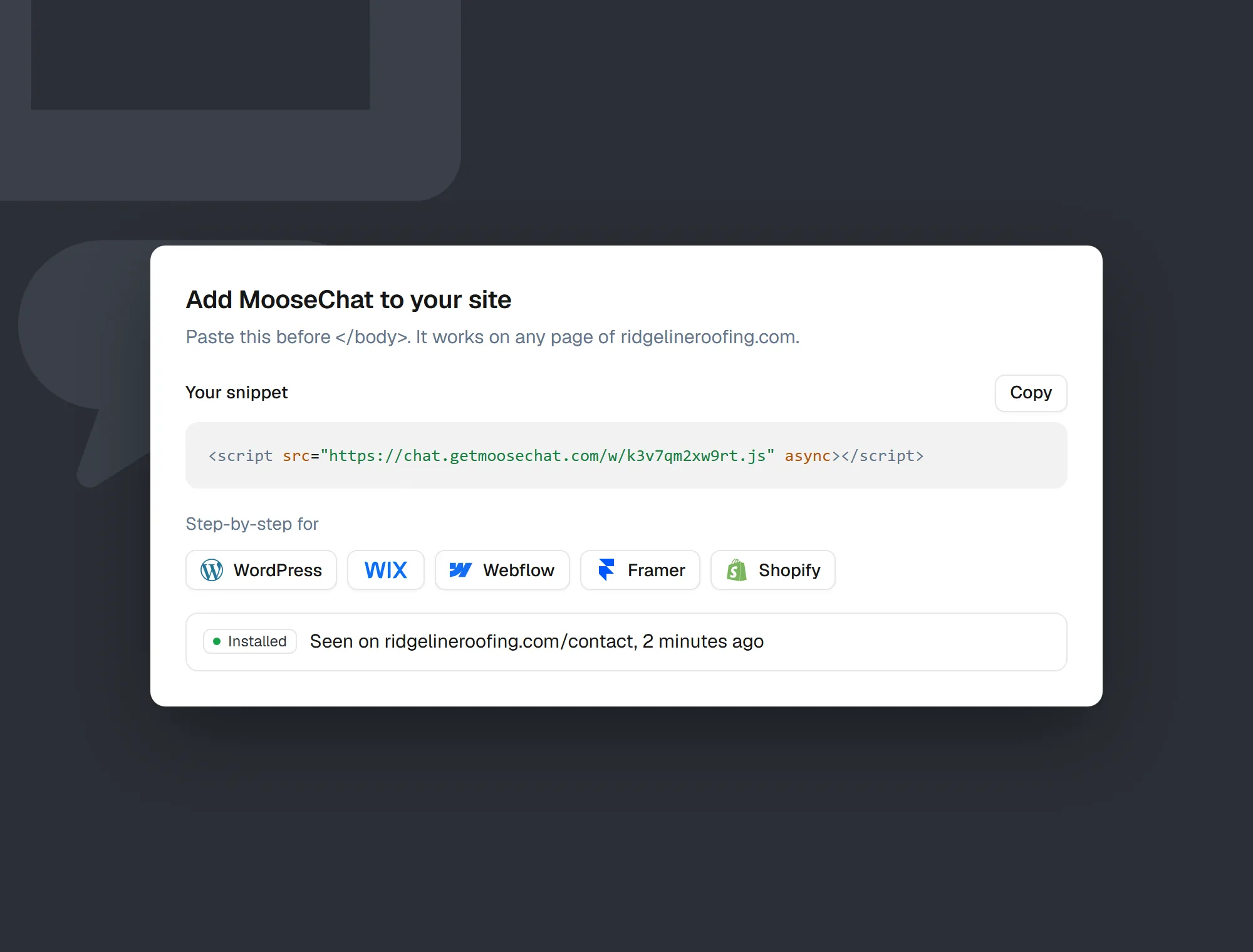
How to add the chatbot on your platform
Each of these puts the script on every page with no plugin of ours and no change to your theme beyond that line.
WordPress
There’s no MooseChat plugin to install. Any chatbot for WordPress that ships as a script works the same way, through a header and footer plugin:
- In WordPress, open Plugins, then Add New, and search for WPCode.
- Install and activate it, then open Code Snippets, then Header and Footer.
- Paste your code into the Footer box and save.
Shopify
- In Shopify, open Online Store, then Themes.
- Next to your live theme, open the menu and choose Edit code.
- Open theme.liquid, paste your code just above
</body>, and save.
This puts the chatbot for Shopify on every page of your store, product and cart pages included. You can hide it on checkout or account pages later (see below).
Wix
- In Wix, open Settings, then Custom Code.
- Add Custom Code, paste your code, and choose All pages.
- Place it in Body - end, then Apply.
The chatbot for Wix then shows on every page of your site once it’s published.
Squarespace
- In Squarespace, open Settings, then Advanced, then Code Injection.
- Paste your code into the Footer box.
- Save.
Code Injection isn’t included on every Squarespace plan, so check that yours has it before adding a chatbot for Squarespace.
Webflow
- In Webflow, open Site settings, then Custom code.
- Paste your code into Footer code and save.
- Publish the site.
Any other website
Paste the line just before </body> on every page, or once in a shared footer, and publish. That covers Framer, sites made with Lovable, Bolt or v0, and hand-built sites. If you can add a script to it, the website chat widget will run on it.
Check that it works
Open your site in a private window. The chat launcher appears in the bottom right corner. Ask it a question, click the source under the answer, then ask something your site doesn’t cover twice and leave a test lead to see it arrive in your inbox.
Choose where it appears and what it suggests
The Behaviour tab controls the chat once it’s live:
- Hide it on pages where it gets in the way, such as checkout or account pages.
/checkout/*hides it on every page under/checkout/. - Suggest different questions on different pages, up to four per page.
- Show it to only part of your visitors while you test it, or to none while you prepare a client’s bot on their live site.
- Add a short disclaimer under the message box, or ask visitors to tick a consent box before they chat.
The chat also knows which page the visitor is reading. Someone on your roof repair page who asks “how much is this?” gets the roof repair price, not a question back.
Set it up from your code editor
If you build sites with Claude Code, Cursor, VS Code or Claude Desktop, MooseChat’s MCP server lets the agent do every step above from one request, for example: “Add a MooseChat chatbot to this site, trained on its pages, with leads going to my email.” The agent creates the bot, puts the script tag in the right file for your framework and asks a test question.
Will a chat widget slow down your site?
The script on every page is under 30 KB compressed and loads with async, so the page doesn’t wait for it. It draws the launcher and nothing else. The chat panel loads only when a visitor opens it. The script sets no cookies. It keeps a random visitor ID and the open conversation in the browser’s local storage, and every chat is labelled “AI assistant”.
What it costs
The trial lasts 7 days and includes 100 conversations. After that, Solo is $39 a month for 1,000 conversations, Pro is $99 for 3,000 and Agency is $249 for 10,000 shared across client sites. All plans have unlimited bots. Details are on the pricing page.
Try it before you install it
You don’t need to add anything to your site to see how this AI chat widget answers. The chat in the corner of this page is MooseChat, reading from this website. Start the trial, paste your own address, and ask it the questions your customers ask before you paste the line.
Frequently asked questions
Can I add an AI chatbot to my website for free?
MooseChat has a 7-day free trial with 100 conversations. The trial needs a card, and nothing is charged until it ends. After that, plans start at $39 a month.
Do I need to know how to code?
No. You paste one line into a settings box that your website builder already has. If someone else runs your site, the dashboard can email them the line and the steps.
Where does the chatbot script go?
Just before the closing </body> tag on every page, or once in a footer that every page shares. On WordPress, Shopify, Wix, Squarespace and Webflow, that is a box in the site settings or theme.
Which website builders does MooseChat work on?
WordPress, Shopify, Wix, Squarespace, Webflow and Framer, sites made with Lovable, Bolt or v0, and any site you can add a script to.
Will a chat widget slow my website down?
The script that loads on every page is under 30 KB compressed and loads without blocking the page. The chat panel itself loads only when a visitor opens it.
Does MooseChat set cookies?
No. It keeps a random visitor ID and the open conversation in the browser's local storage, and sets no cookies.